

Complete Guide to Ecofy Customer Portal (Make Payments, Track EMIs, and More)
- Published on Mar 11, 2026
- Read Time 7 mins
-
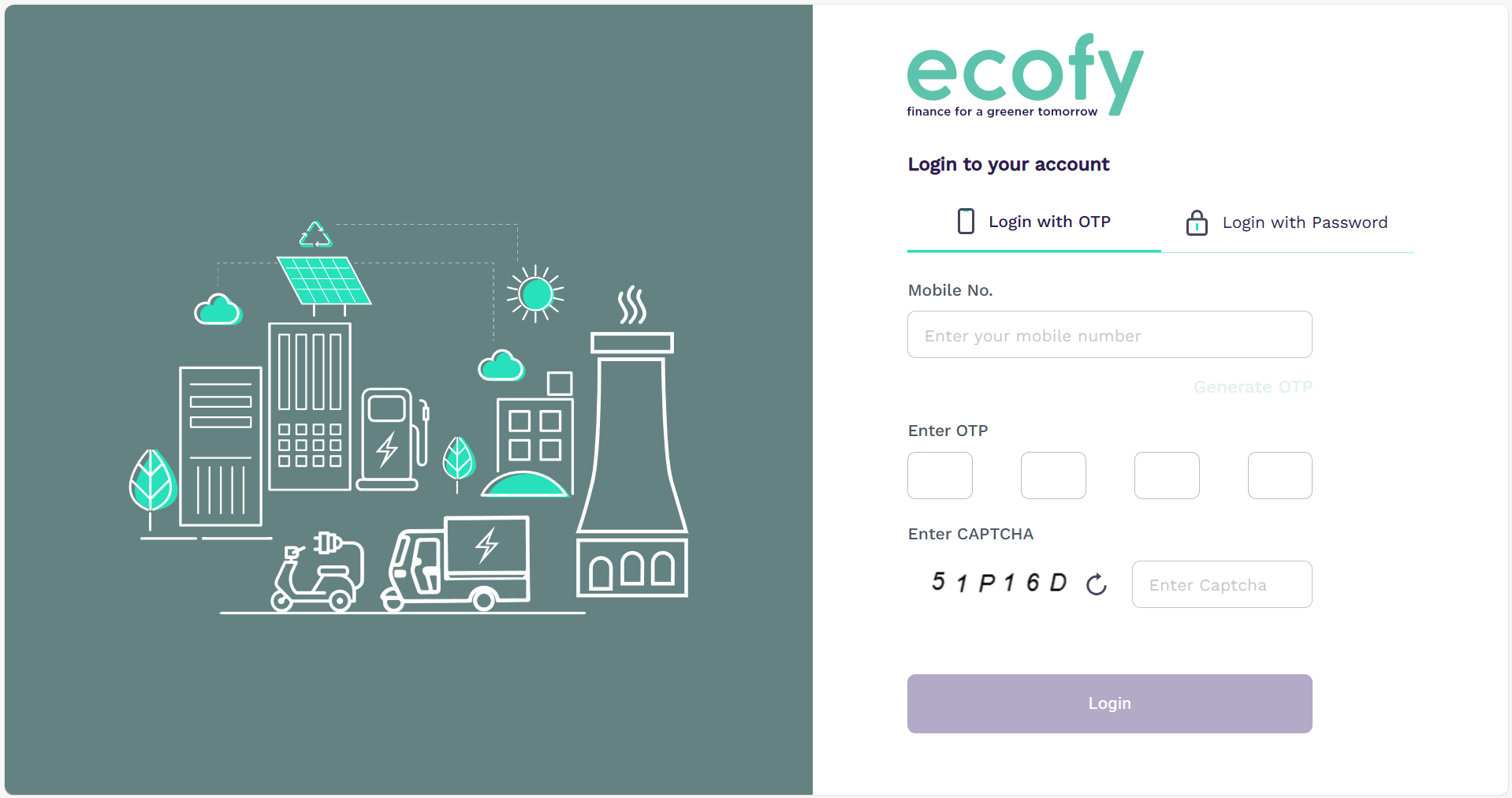
If you’ve applied for green finance with Ecofy or already have an ongoing loan, you might have heard of Ecofy’s customer portal. If not, here’s a complete guide to accessing your existing loan application, making payments, creating service requests, and tracking your cleared and incoming instalments.
Ecofy Customer Dashboard
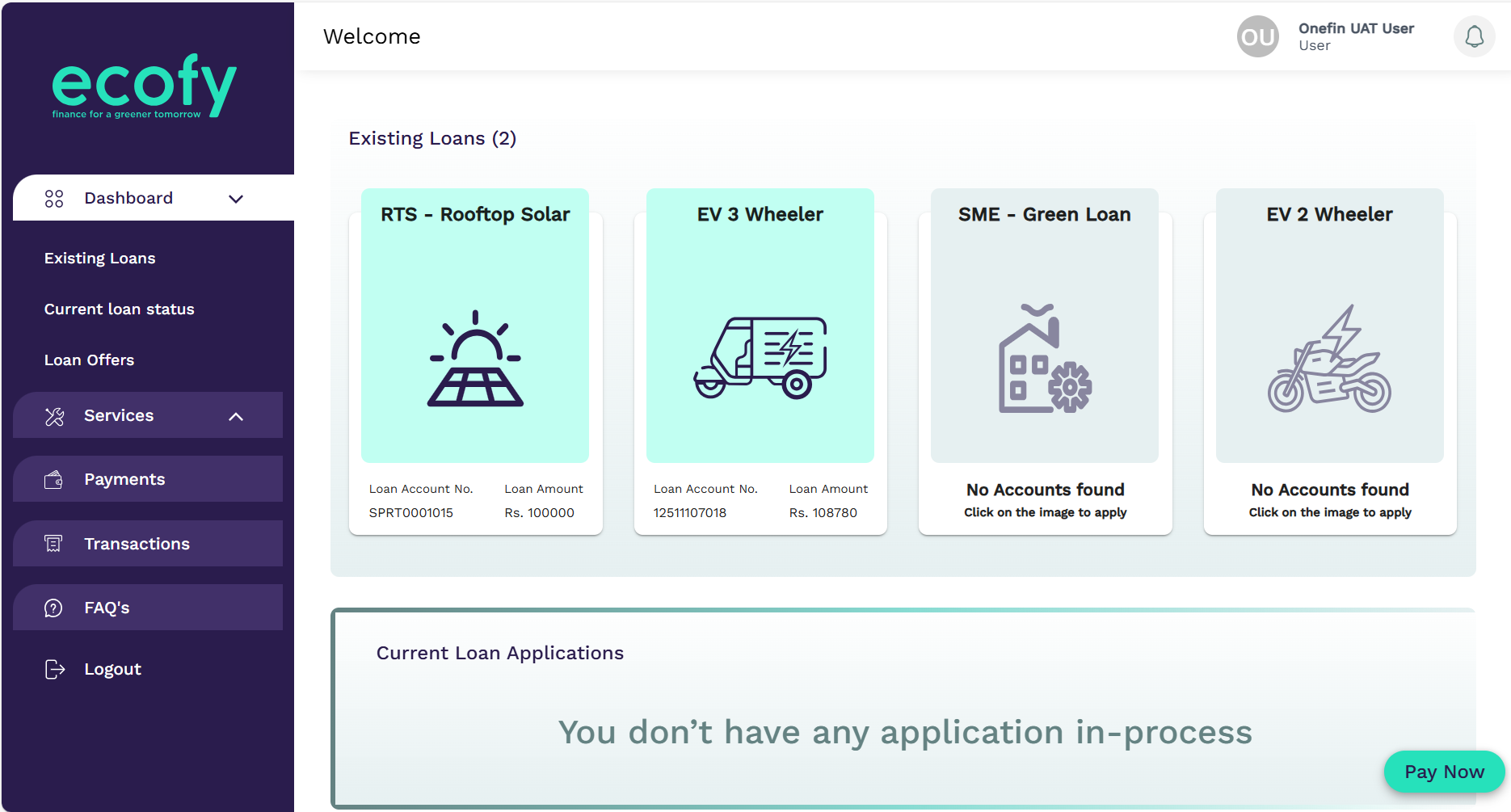
Click the dropdown icon next to Dashboard in the left panel. You’ll get options to access your existing loans and check the status of your current loan.
There’s also a section reserved for loan offers, wherein you could apply for a new 2-wheeler/3-wheeler EV loan or a rooftop solar loan. While these options are for both household and business owners, there’s an additional icon for organisation owners to apply for a green SME loan for equipment or other green upgrades.
Existing Loans
You’ll see four cards under the existing loans tab. This shows whether you have a loan account for any of Ecofy’s four loan products. Non-existent loan accounts will show on the colourless cards.
In case of active green loans, you’ll see your loan account number and loan amount at the bottom of the green card. Simply click the active loan card to view additional details about your green loan. From your basic customer data and tenure to disbursal details such as upfront EMI, disbursed/undisbursed amounts and ID, and down payment cleared, everything you need to know about your loan is there.
If there are any remaining undisbursed amounts, click the Disbursement Request button to create a request.
Also, the first column on this page lets you download loan documents and also see whether you’re under a fixed or recurring interest scheme. These documents can be used for submission to your chartered accountant or government authorities. Here’s a list of the official paperwork you can download:
- Loan agreement
- Sanction letter
- Account statement
- Loan closure certificate
- Interest certificate
- Key fact sheet
- GST invoice
A little below this section, you can see all details regarding your dues and there is an option to pay your next EMI. This includes your next EMI amount and due date, along with any added charges for late fees or a NACH bounce (digital equivalent of a bounced cheque/payment). Lastly, this section also displays your bank account details.
Current Loan Applications
This section is reserved for accessing your data for a to-be-approved loan. If you’ve already applied and are awaiting confirmation, approval status and disbursement dates will be visible here.
Ecofy Services Page
This section lets borrowers either create a new request or view existing requests. The view request section will display a table with existing request reference numbers, request dates, request types, and their statuses. Let’s now see what you can do from the create request page:
- Loan-related Requests: Access individual dropdowns to choose your existing loan product and change data like your contact number or email address. Keep a reason ready, as there’s a section for explaining why you’re changing this data. You can also update your KYC details for a commercial or individual loan account. Here are a few more requests you can create in this section:
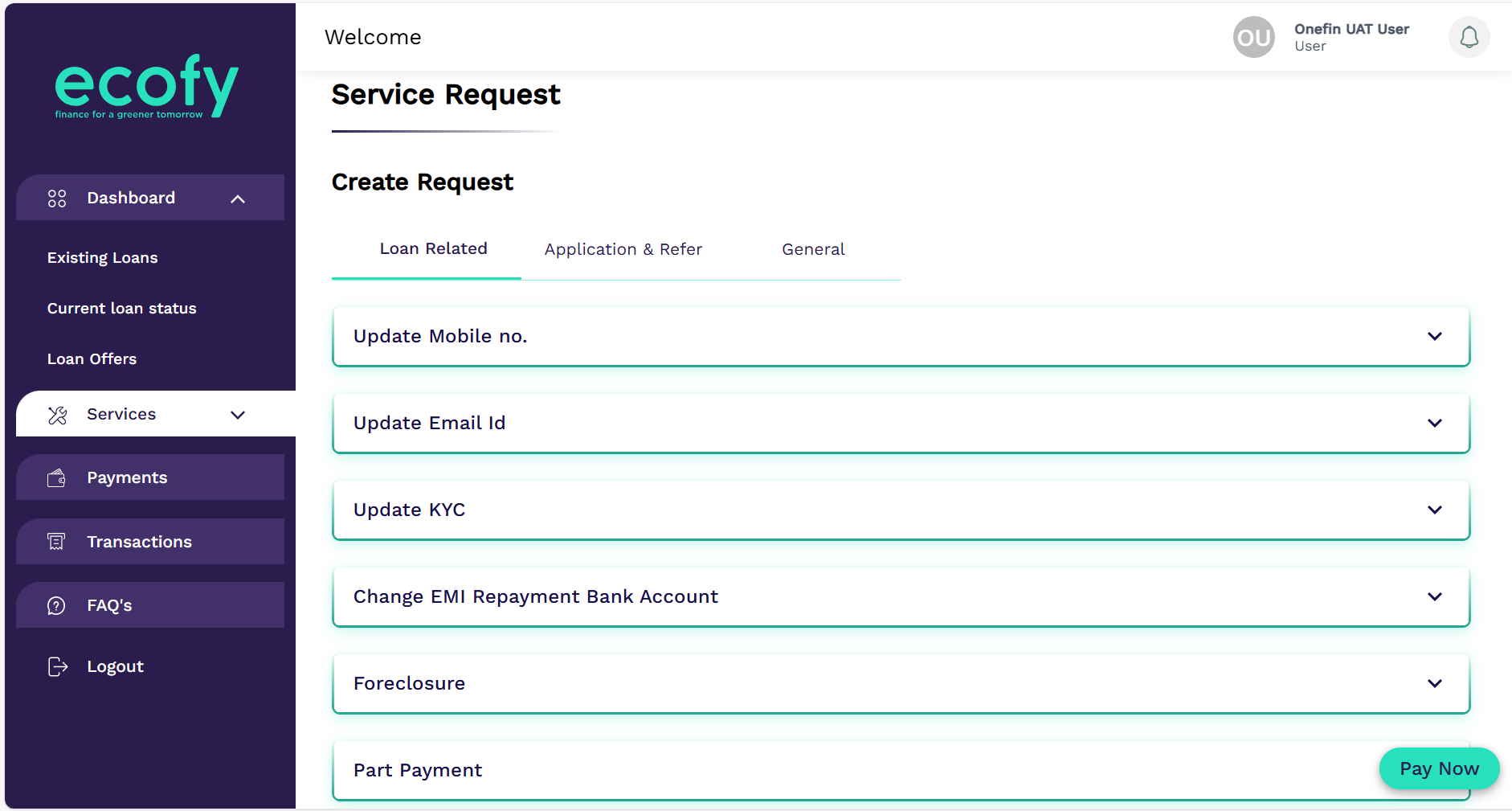
- Application and Refer Requests: Use the refer and earn section to enter details of a referee you trust and wants to apply for a green loan. Use the ‘Other loan Offers’ tab to apply for additional loan products. You’ll be prompted to enter your city and state as well. Contact support to check for subsidies.
- General Requests: This section is reserved for any additional queries you may have regarding restructuring EMIs, interest payments, loan products, policies, etc. You can also find a dropdown reserved to share your grievances as a service request.
Ecofy Payments Page
This section is exclusively reserved for making payments. You can also view a breakdown of your due EMI amount and due charges. To make a payment, simply click Pay Now, and you’ll be directed to a secure payment gateway.
Ecofy Transactions Page
Use the column on the left of your Ecofy customer portal to navigate to this page. You’ll see a simple table showing your transaction dates, the description of the transaction, the amount in negative or positive, and a unique transaction ID.
The page also includes a filter to view transactions within a specific time period. Use it to track transactions at different points of the year.
Bonus: There’s a button on the top-right that lets you export this data.
Ecofy FAQs Page
Ecofy keeps updating this section with frequently asked questions from existing customers. The built-in search engine lets you input a keyword to look for relevant questions. If your question isn’t already answered, use the box below to type and submit your query.
Access Your Ecofy Customer Portal
The one standard feature across Ecofy’s customer portal is the option to Pay Now. This lets you instantly make a payment towards your pending EMI amount. And in case you haven’t got access to your account yet, please stay patient, as access is granted once the loan is disbursed.
CTA: Login to Your Customer Portal
Tip: Ecofy also has a WhatsApp chatbot to help you with existing or new loan information. Click here to access it.